From Local React to Cloud Run
Learning Objectives
Rationale
Google Cloud Platform (GCP) provides scalable infrastructure and advanced security features. True reliability starts locally. This guide covers the full journey: fixing local React "blank pages", handling API keys safely, and orchestrating a secure, keyless deployment pipeline using industry-standard DevOps practices.
1. Create GitHub Repository
Start by creating a new repository on GitHub.
- Click + > New repository.
- Name:
gcp-wif-demo. - Visibility: Public or Private.
- Initialize with a README.
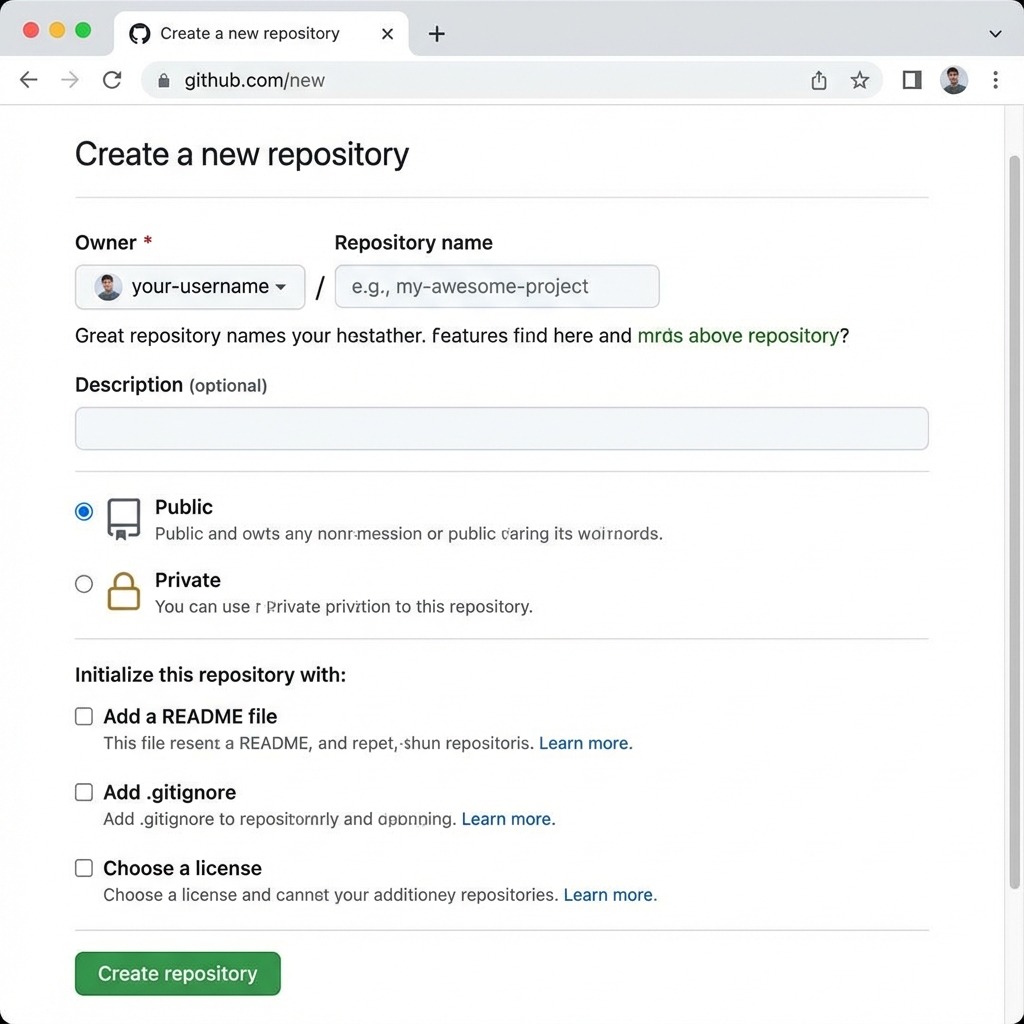
Create Repository Page
2. Local Development Pitfalls
1. The "Default Port" Trap
Scenario: You launch your app, but `localhost:5173` refuses to connect. You notice the terminal says it's running on `localhost:5174`.
Why it happens: Vite (and many other tools) defaults to port 5173. If that port is in use (e.g., by a "zombie" process from a previous run), it silently increments to the next available port.
The Fix: Enforce strict port usage in vite.config.js. This
forces the server to crash rather than switch ports, alerting you to the issue
immediately.
Code: server: { port: 5173, strictPort: true }
2. The 20-Second Delay (IPv6 vs IPv4)
Scenario: The app loads, but it takes exactly 20 seconds of a white screen before anything appears.
Why it happens: Node.js often prefers IPv6 resolution (`::1`) for `localhost`. However, dev servers usually listen on IPv4 (`127.0.0.1`). The browser tries IPv6, waits for the timeout (20s), and then falls back to IPv4.
The Fix: Explicitly bind the server to the IPv4 loopback address in
vite.config.js.
Code: server: { host: '127.0.0.1' }
3. The "Silent Crash" (Static Import Errors)
Scenario: You see a blank white screen. There are NO errors in the browser console. The Refresh button does nothing.
Why it happens: If you have a syntax error or a typo in a top-level `import` statement, the JavaScript engine fails to parse the file before React even starts. Because it happens at the parsing level, generic Error Boundaries cannot catch it.
The Fix: Run npm run build in your terminal. The build
process (using `tsc` or `vite build`) scans all files for static validity and will print
the exact file and line number of the bad import.
4. The "React Crash" (Runtime Errors)
Scenario: The app loads briefly, then turns white. The console shows a red React error stack trace.
Why it happens: An unhandled JavaScript exception occurred during rendering (e.g., `cannot read property of undefined`). In React, if a component throws an error, the entire component tree unmounts by default to protect data integrity.
The Fix: Wrap your main specific component (or the entire App) in a Global Error Boundary. This catches the crash and displays a "Something went wrong" UI instead of a blank screen.
5. The "Nuclear Option" (Isolating the Problem)
Scenario: You are stuck. You don't know if it's the network, the browser, React, or your code.
The Technique: Delete everything in `main.jsx` and replace it with a
single line: document.body.innerHTML = ".IT WORKS
";
The Logic: If "IT WORKS" appears, your server, browser, and network are fine; the issue is definitely in your React code. If it doesn't appear, your environment is broken (e.g., port blocking, wrong URL).
6. High Severity Vulnerabilities (npm audit)
Scenario: Your CI pipeline fails because `npm audit` reports "High Severity" vulnerabilities, but they are in libraries you don't use directly (nested dependencies).
Why it happens: A library like `react-scripts` might rely on an old version of `postcss`. You can't upgrade `postcss` directly because you didn't install it.
The Fix: Use the overrides field in
package.json. This forces `npm` to replace the vulnerable version with a
secure one across the entire dependency tree.
"overrides": {
  "nth-check": "^2.0.1",
  "postcss": "^8.4.31"
}
3. Headless Chrome Stability
Issue: UI tests that pass locally often fail in headless CI environments due to race conditions or rendering differences.
Symptoms: The test report shows random failures only in CI. Screenshots taken during failure might show:
- A blank page (the element hasn't loaded yet).
- A different element being clicked because the intended one wasn't ready.
Logs often show js.lang.RuntimeException: js eval failed or timeout errors.
Solutions:
- Explicit Waits: Never assume an element is ready. Use
waitFor('#id')orwaitFor("//xpath"). - Robust Selectors: Material UI and other frameworks often nest text.
- Bad:
//button[text()='Clear'](Fails if text is in a<span>) - Good:
//button[contains(., 'Clear')](Checks text content of element and children)
- Bad:
- Mock Blocking functions:
window.alertcan block the execution thread in headless mode. Overwrite it to prevent hangs if an error occurs.- Karate Example:
* script("window.alert = function(){}")
- Karate Example:
4. Testing with Restricted API Keys
Issue: Frontend API keys often have "Referrer Restrictions" (e.g., allow
localhost:3000).
Symptoms: Your API tests fail with a 403 Forbidden status code. The response body explicitly mentions restrictions:
{
  "error_message": "API keys with referer restrictions cannot be used with this API.",
  "status": "REQUEST_DENIED"
}- Problem A: Direct API calls (backend-style) from tests lack the
Refererheader. - Problem B: Some Google Web Services (Places/Directions Web Service) strictly reject frontend keys regardless of headers.
Solutions:
- Add Headers: For permitted APIs, add the header in the test background:
* header Referer = 'http://localhost:3000/'. - Ignore Invalid Tests: If the key is strictly frontend-only, do not run
direct backend API tests. Use
@ignoretags.
5. Google Cloud Setup
Set up your environment variables to make copy-pasting easier.
export PROJECT_ID="your-project-id"
export REGION="us-central1"
export REPO_NAME="gcp-wif-demo"
export USER_NAME="your-github-username"Enable the required APIs:
gcloud services enable iam.googleapis.com \
    cloudresourcemanager.googleapis.com \
    iamcredentials.googleapis.com \
    artifactregistry.googleapis.com \
--project="${PROJECT_ID}"6. Workload Identity Federation
Create a Pool to organize your external identities.
gcloud iam workload-identity-pools create "github-pool" \
  --project="${PROJECT_ID}" \
  --location="global" \
  --display-name="GitHub Actions Pool"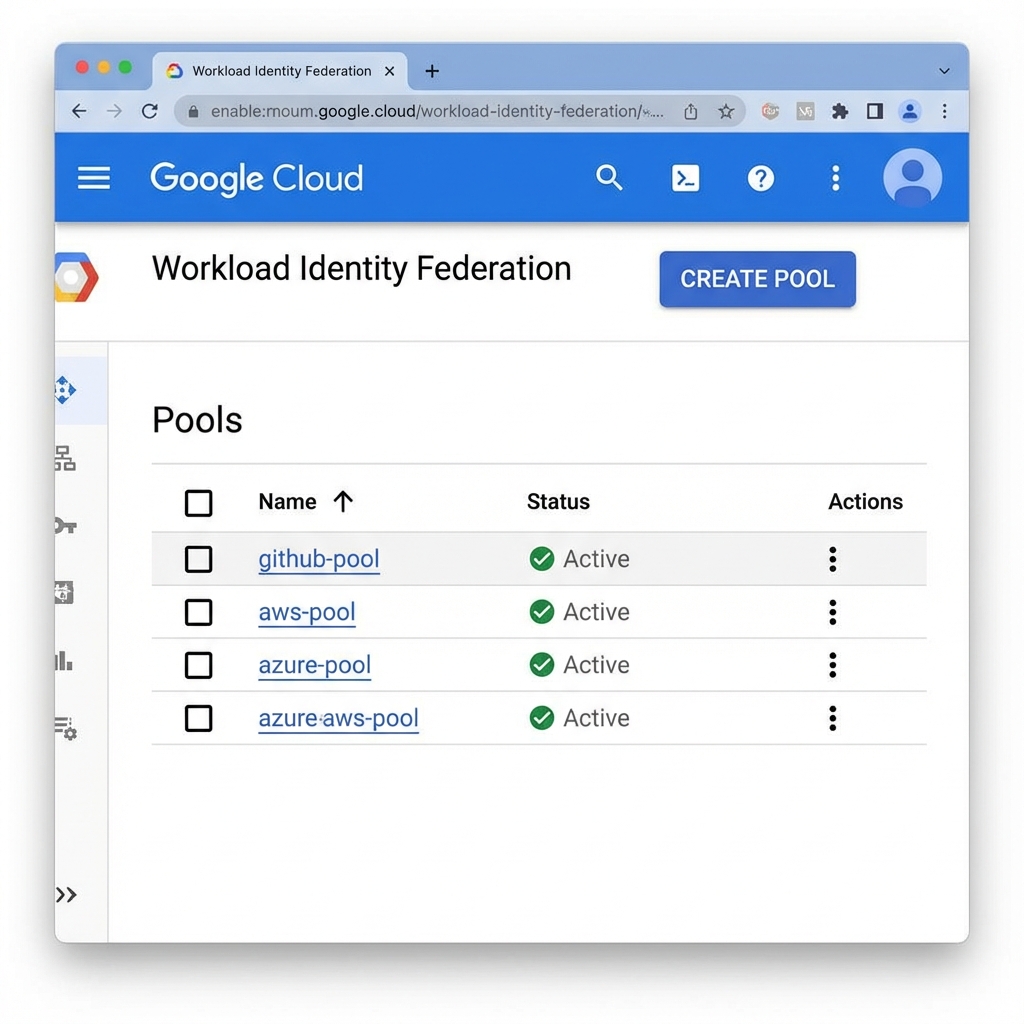
Create a Provider to trust GitHub's OIDC tokens.
gcloud iam workload-identity-pools providers create-oidc "github-provider" \
  --project="${PROJECT_ID}" \
  --location="global" \
  --workload-identity-pool="github-pool" \
  --display-name="GitHub Provider" \
  --attribute-mapping="google.subject=assertion.sub,attribute.actor=assertion.actor,attribute.repository=assertion.repository" \
--issuer-uri="https://token.actions.githubusercontent.com"7. Service Account & IAM
Create the Service Account:
export SERVICE_ACCOUNT="github-actions-sa"

gcloud iam service-accounts create "${SERVICE_ACCOUNT}" \
  --project="${PROJECT_ID}" \
--display-name="GitHub Actions Service Account"Grant permission to write to Artifact Registry:
gcloud projects add-iam-policy-binding "${PROJECT_ID}" \
  --member="serviceAccount:${SERVICE_ACCOUNT}@${PROJECT_ID}.iam.gserviceaccount.com" \
--role="roles/artifactregistry.writer"Crucial Step: Allow your specific GitHub repo to impersonate this Service Account.
gcloud iam service-accounts add-iam-policy-binding "${SERVICE_ACCOUNT}@${PROJECT_ID}.iam.gserviceaccount.com" \
  --project="${PROJECT_ID}" \
  --role="roles/iam.workloadIdentityUser" \
--member="principalSet://iam.googleapis.com/projects/$(gcloud projects describe ${PROJECT_ID} --format='value(projectNumber)')/locations/global/workloadIdentityPools/github-pool/attribute.repository/${USER_NAME}/${REPO_NAME}"8. Artifact Registry
Create the Docker repository:
export AR_REPO="my-docker-repo"

gcloud artifacts repositories create "${AR_REPO}" \
  --project="${PROJECT_ID}" \
  --location="${REGION}" \
  --repository-format=docker \
  --description="Docker repository for GitHub Actions"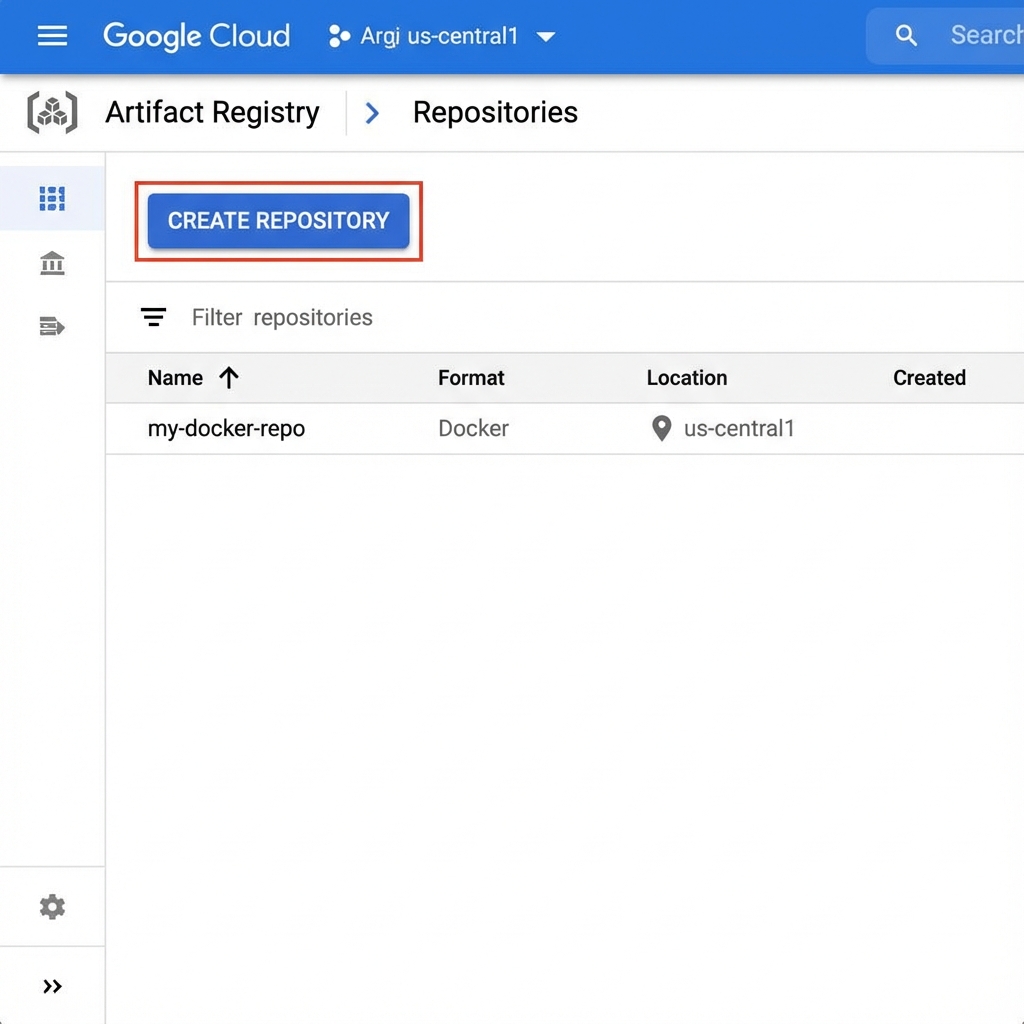
9. Docker Build Arguments & Secrets
Issue: Passing secrets as build arguments to docker build via shell
commands is prone to errors due to quoting and shell expansion.
Symptoms: You might see obscure syntax errors in your build log like:
docker: "build" requires 1 argument.
See 'docker build --help'.
Or, if the build succeeds, your application crashes at runtime because the secret variable is empty.
Solution: Use the official docker/build-push-action. It handles
secret injection safely and correctly parses arguments.
- name: Build App Image
  uses: docker/build-push-action@v5
  with:
    context: .
    load: true # Keeps image available for subsequent steps
    build-args: |
REACT_APP_GOOGLE_API_KEY=${{ secrets.REACT_APP_GOOGLE_API_KEY }}10. Java Version Compatibility
Issue: Tools may have specific Java requirements that differ from the project default. Karate 1.5.0+ requires Java 17, while the project might be on Java 11.
Symptoms: The build fails immediately with a class version error:
java.lang.UnsupportedClassVersionError:
com/intuit/karate/Main has been compiled by a more recent version
of the Java Runtime (class file version 61.0)...
Solution: Explicitly set the Java version in both the CI environment
(actions/setup-java) and the Maven configuration
(maven-compiler-plugin).
- uses: actions/setup-java@v4
  with:
java-version: '17'11. GitHub Environments
Issue: Secrets defined in a specific GitHub Environment (e.g., CI)
are not accessible to the workflow job unless the job explicitly references that environment.
Symptoms: Your workflow runs, but steps that need the secret fail. If you print the secret (be careful!), it is empty. Your app logs might say:
Error: GOOGLE_API_KEY is not setSolution: Add the environment property to the job configuration.
jobs:
  test:
    environment: CI
    steps:
...12. GitHub Actions Workflow
Create .github/workflows/deploy.yaml in your repo:
name: Build and Push to GCP

on:
  push:
    branches: [ "main" ]

env:
  PROJECT_ID: 'your-project-id'
  REGION: 'us-central1'
  GAR_LOCATION: 'us-central1-docker.pkg.dev/your-project-id/my-docker-repo'
  SERVICE_ACCOUNT: 'github-actions-sa@your-project-id.iam.gserviceaccount.com'
  WORKLOAD_IDENTITY_PROVIDER: 'projects/123456789/locations/global/workloadIdentityPools/github-pool/providers/github-provider'

jobs:
  build-push:
    runs-on: ubuntu-latest
    permissions:
      contents: 'read'
      id-token: 'write' # Required for WIF

    steps:
      - name: Checkout
        uses: actions/checkout@v4

      - name: Google Auth
        id: auth
        uses: 'google-github-actions/auth@v2'
        with:
          workload_identity_provider: '${{ env.WORKLOAD_IDENTITY_PROVIDER }}'
          service_account: '${{ env.SERVICE_ACCOUNT }}'

      - name: Set up Cloud SDK
        uses: 'google-github-actions/setup-gcloud@v2'

      - name: Docker Auth
        run: |-
          gcloud auth configure-docker us-central1-docker.pkg.dev

      - name: Build and Push Container
        run: |-
          docker build -t "${{ env.GAR_LOCATION }}/my-app:${{ github.sha }}" .
docker push "${{ env.GAR_LOCATION }}/my-app:${{ github.sha }}"13. Deploy to Cloud Run
Update your workflow file to add the deploy step:
      - name: Deploy to Cloud Run
        id: deploy
        uses: google-github-actions/deploy-cloudrun@v2
        with:
          service: my-app-service
          region: ${{ env.REGION }}
          image: ${{ env.GAR_LOCATION }}/my-app:${{ github.sha }}
flags: '--allow-unauthenticated'To Kick-start: Commit and push these changes to your main branch.
Go to the Actions tab in GitHub to watch it fly!
14. GCP Self-Hosted Runners
A guide to setting up and troubleshooting self-hosted GitHub Runners on Google Cloud Platform.
Setup & Deployment
Steps:
- Preparation: Install
gcloudSDK and authenticate (gcloud auth login). - Note: Ensure you are authenticated before running deployment scripts!
- Configuration: Create a
.envfile ingcp-runner/to store your GitHub Personal Access Token (PAT).# gcp-runner/.env GITHUB_PAT=ghp_your_token_here - Deploy: Run the deployment script.
cd gcp-runner
./deploy.sh
Updating Runners (Lifecycle)
Crucial Lesson: Changes to startup-script.sh do
NOT
apply to running instances.
To apply changes (e.g., installing new tools), you must Re-run the Deployment Script. The script handles the lifecycle:
- Deletes existing Managed Instance Groups (MIG).
- Deletes old Instance Templates.
- Creates a new Template with the updated script.
- Creates a new MIG, provisioning fresh VMs.
Optimization: Golden Image Strategy
Problem: Standard runners fail to start in < 5 minutes because they install Docker/Git on every boot.
Solution: The "Golden Image" strategy builds a custom disk image with all dependencies pre-installed. This moves the heavy lifting to the build phase.
1. Image Setup Script (setup-image.sh)
Installs dependencies on a temporary VM.
#!/bin/bash
set -e
# Install Docker, Git, jq, curl
apt-get update && apt-get install -y docker.io git jq curl wget

# Pre-pull Docker images to speed up CI
systemctl start docker
docker pull node:20-alpine

# Install GitHub Runner (but don't configure yet)
mkdir -p /actions-runner && cd /actions-runner
curl -o runner.tar.gz -L https://github.com/actions/runner/releases/download/v2.311.0/actions-runner-linux-x64-2.311.0.tar.gz
tar xzf runner.tar.gz
./bin/installdependencies.sh

# Cleanup unique IDs so they don't persist in the image
truncate -s 0 /etc/machine-id2. Build Image Script (build-image.sh)
Creates the reusable disk image.
# Create temp VM
gcloud compute instances create builder-vm \
    --metadata-from-file=startup-script=./setup-image.sh \
    --image-family=ubuntu-2204-lts ...

# Wait for setup to finish...
sleep 300

# Create Image from Disk
gcloud compute images create gh-runner-golden-v1 --source-disk=builder-vm ...Deploying: Update your deploy.sh to use
--image-family=gh-runner-image instead of Ubuntu, and use a lightweight
startup-script.sh that only handles registration.
Common Errors
1. Invalid value for field 'resource.instanceTemplate'
Scenario: You run deploy.sh and it fails when
creating the Managed Instance Group (MIG).
Error:
Invalid value for field 'resource.instanceTemplate': '...' does not exist.
Cause: You created a "Regional" instance template, but the MIG is trying to find it globally (or vice versa). By default, `gcloud` might default to regional templates which are harder to reference across zones.
Fix: create the Instance Template as Global.
Remove the --region flag from the `gcloud compute
instance-templates create` command.
2. Push cannot contain secrets
Scenario: You try to `git push` your code, but the operation is rejected.
Cause: You accidentally committed your `gcp-key.json` or hardcoded a PAT in a script. GitHub's secret scanning (or pre-commit hooks) blocked it to protect you.
Fix: Remove the file/secret. You might need to use `git reset HEAD~1` to undo the commit, then modify the file to use environment variables (`$GITHUB_PAT`), and commit again.
3. ENOSPC: no space left on device
Scenario: The build fails while pulling Docker images.
Cause: The default disk size for some machine types is small (e.g., 10-30GB). Docker images and layers accumulate quickly.
Fix: In deploy.sh, ensure the boot disk size is set
to at least 100GB: ` --boot-disk-size=100GB`.
4. The resource ... already exists
Scenario: You run deploy.sh a second time time to
update something, and it crashes.
Cause: The script is trying to create resources (MIG, Template) that already exist. It doesn't know how to "update".
Fix: Add cleanup logic to the top of your script. Check if the resource exists, and `delete` it before `create`. (See Reference Scripts).
5. Could not fetch image resource
Scenario: The deployment fails saying the Image was not found.
Cause: You likely referenced a specific image version (e.g., `ubuntu-2204-v20240101`) that Google has since deprecated and deleted.
Fix: Always use the Image Family flag: `--image-family=ubuntu-2204-lts`. This points to the latest available version automatically.
6. bash: ./deploy.sh: Permission denied
Scenario: You try to run the script and the terminal says "Permission denied".
Cause: The file does not have the "Execute" permission bit set on the filesystem.
Fix: Run chmod +x deploy.sh startup-script.sh to
make them executable.
7. Slow Performance / Queuing
Scenario: You start a workflow. It stays "Queued" for 4 minutes before starting. The run is slow.
Cause: If you use Ephemeral runners without an idle pool, every job has to boot a whole new VM, install Docker, and register. This takes time.
Fix: Use the "Idle Timeout" strategy. Keep the runner alive for 10 minutes after a job so subsequent jobs are instant. Also, increase MIG size.
8. gh: command not found
Scenario: Your workflow uses `gh release create`, but it fails on the self-hosted runner.
Cause: The `gh` CLI tool comes pre-installed on GitHub-hosted runners, but NOT on standard Ubuntu images. Your runner is "naked".
Fix: Add the installation steps for `gh` CLI to your
startup-script.sh.
9. Deployment Script Hanging
Scenario: You run deploy.sh. It prints "Cleaning
up..." and then sits there forever. Ctrl+C is required.
Cause: gcloud is trying to ask for a confirmation
or password, but you piped the output to `&>/dev/null` (or it's hidden), so you
can't see the prompt.
Fix: Remove `&>/dev/null` from your commands while debugging. Add explicit authentication checks at the top of the script.
10. CI Failure: "mvn: command not found"
Cause: Similar to `gh` CLI, Maven is not installed by default on Ubuntu.
Fix: Add apt-get install -y maven to your startup
script.
11. CI Failure: "driver config / start failed"
Scenario: Your UI tests fail with "Chrome not reachable" or "Driver failed".
Cause: You are trying to run Headless Chrome, but Chrome isn't even installed on the runner VM.
Fix: Add the Google Chrome stable installation block to your startup script.
12. Golden Image Build Hangs
Scenario: You try to build a Golden Image. The script runs for hours and never finishes.
Cause: `apt-get install` commands often stop to ask "Do you want to restart services?". Since there is no user to say "Yes", it waits forever.
Fix: Set the environment variable `DEBIAN_FRONTEND=noninteractive` before running apt commands in your setup script.
13. Runners Stuck / Queueing Indefinitely
Scenario: GitHub shows "Queued" for 20 minutes. You check GCP, and the VMs are running.
Cause A (Labels): Your workflow demands `runs-on: [self-hosted, linux]`, but your runner registered with `labels: gcp-runner`. They must match.
Cause B (Broken Startup): The startup script crashed before registering. Check the VM logs (Serial Port 1 observations) in GCP Console.
Fix: Ensure `labels` in `config.sh` match the workflow. Check logs for script errors.
Reference Scripts
deploy.sh (Click to Expand)
#!/bin/bash
# Deploy GCP GitHub Runner Infrastructure (Standard Tier + Persistence)

# Configuration
PROJECT_ID=$(gcloud config get-value project)
REGION="us-central1"
ZONE="us-central1-a"
TEMPLATE_NAME="gh-runner-template"
MIG_NAME="gh-runner-mig"
REPO_OWNER="<YOUR_GITHUB_USERNAME>"
REPO_NAME="<YOUR_REPO_NAME>"

# Load from .env if it exists
if [ -f .env ]; then
    export $(cat .env | xargs)
fi

# Check if GITHUB_PAT is set, otherwise prompt
if [ -z "$GITHUB_PAT" ]; then
    read -s -p "Enter GitHub PAT: " GITHUB_PAT
    echo ""
fi

# Explicit Auth Check
if ! gcloud auth print-access-token &>/dev/null; then
    echo "Error: gcloud not authenticated. Run 'gcloud auth login' first."
    exit 1
fi

echo "Deploying to Project: $PROJECT_ID"

# 0. Cleanup Existing Resources (to allow upgrades/re-runs)
echo "Cleaning up existing resources..."
# Delete MIG if it exists
if gcloud compute instance-groups managed describe $MIG_NAME --zone=$ZONE --project=$PROJECT_ID &>/dev/null; then
    echo "Deleting existing MIG: $MIG_NAME"
    gcloud compute instance-groups managed delete $MIG_NAME --zone=$ZONE --project=$PROJECT_ID --quiet
fi

# Delete Instance Template if it exists (Global)
if gcloud compute instance-templates describe $TEMPLATE_NAME --project=$PROJECT_ID &>/dev/null; then
    echo "Deleting existing Instance Template: $TEMPLATE_NAME"
    gcloud compute instance-templates delete $TEMPLATE_NAME --project=$PROJECT_ID --quiet
fi

# 1. Create Instance Template
echo "Creating Instance Template..."
gcloud compute instance-templates create $TEMPLATE_NAME \
    --project=$PROJECT_ID \
    --machine-type=e2-standard-4 \
    --network-interface=network-tier=PREMIUM,network=default,address= \
    --metadata-from-file=startup-script=./startup-script.sh \
    --metadata=github_pat=$GITHUB_PAT \
    --maintenance-policy=MIGRATE \
    --provisioning-model=STANDARD \
    --service-account=default \
    --scopes=https://www.googleapis.com/auth/devstorage.read_only,https://www.googleapis.com/auth/logging.write,https://www.googleapis.com/auth/monitoring.write,https://www.googleapis.com/auth/servicecontrol,https://www.googleapis.com/auth/service.management.readonly,https://www.googleapis.com/auth/trace.append \
    --tags=http-server,https-server \
    --image-family=ubuntu-2204-lts \
    --image-project=ubuntu-os-cloud \
    --boot-disk-size=100GB \
    --boot-disk-type=pd-balanced \
    --boot-disk-device-name=$TEMPLATE_NAME

# 2. Create Managed Instance Group (MIG)
echo "Creating Managed Instance Group..."
gcloud compute instance-groups managed create $MIG_NAME \
    --project=$PROJECT_ID \
    --base-instance-name=gh-runner \
    --template=$TEMPLATE_NAME \
    --size=2 \
    --zone=$ZONE

echo "Deployment Complete."startup-script.sh (Click to Expand)
#!/bin/bash
# GCP GitHub Runner Startup Script
# Optimized for e2-standard-4 (4 vCPU, 16 GB RAM) with Idle Timeout

set -e

# --- 1. Swap Configuration ---
echo "Setting up Swap..."
# Create 4GB swap file
fallocate -l 4G /swapfile || dd if=/dev/zero of=/swapfile bs=1M count=4096
chmod 600 /swapfile
mkswap /swapfile
swapon /swapfile
echo '/swapfile none swap sw 0 0' >> /etc/fstab
sysctl vm.swappiness=60
echo 'vm.swappiness=60' >> /etc/sysctl.conf

# --- 2. Install Dependencies ---
echo "Installing Docker, Git, Maven, and GitHub CLI..."
apt-get update
apt-get install -y docker.io git jq curl maven

# Install Google Chrome (for UI Tests)
echo "Installing Google Chrome..."
wget -q -O - https://dl-ssl.google.com/linux/linux_signing_key.pub | apt-key add -
echo "deb [arch=amd64] http://dl.google.com/linux/chrome/deb/ stable main" >> /etc/apt/sources.list.d/google-chrome.list
apt-get update
apt-get install -y google-chrome-stable

# Install gh CLI
mkdir -p -m 755 /etc/apt/keyrings
wget -qO- https://cli.github.com/packages/githubcli-archive-keyring.gpg | tee /etc/apt/keyrings/githubcli-archive-keyring.gpg > /dev/null
chmod go+r /etc/apt/keyrings/githubcli-archive-keyring.gpg
echo "deb [arch=$(dpkg --print-architecture) signed-by=/etc/apt/keyrings/githubcli-archive-keyring.gpg] https://cli.github.com/packages stable main" | tee /etc/apt/sources.list.d/github-cli.list > /dev/null
apt-get update
apt-get install -y gh

systemctl enable --now docker

# --- 3. Install GitHub Runner ---
echo "Installing GitHub Runner..."
mkdir /actions-runner && cd /actions-runner
curl -o actions-runner-linux-x64-2.311.0.tar.gz -L https://github.com/actions/runner/releases/download/v2.311.0/actions-runner-linux-x64-2.311.0.tar.gz
tar xzf ./actions-runner-linux-x64-2.311.0.tar.gz

# --- 4. Configuration Variables ---
GITHUB_REPO="<YOUR_GITHUB_USERNAME>/<YOUR_REPO_NAME>"
REPO_URL="https://github.com/${GITHUB_REPO}"
# PAT fetched from Instance Metadata
PAT=$(curl -s -H "Metadata-Flavor: Google" "http://metadata.google.internal/computeMetadata/v1/instance/attributes/github_pat")

if [ -z "$PAT" ]; then
  echo "Error: github_pat metadata not found."
  exit 1
fi

# --- 5. Get Registration Token ---
echo "Fetching Registration Token..."
REG_TOKEN=$(curl -s -X POST -H "Authorization: token ${PAT}" -H "Accept: application/vnd.github.v3+json" https://api.github.com/repos/${GITHUB_REPO}/actions/runners/registration-token | jq -r .token)

if [ "$REG_TOKEN" == "null" ]; then
    echo "Failed to get registration token. Check PAT permissions."
    exit 1
fi

# --- 6. Configure & Run (Persistent with Idle Timeout) ---
echo "Configuring Runner..."
export RUNNER_ALLOW_RUNASROOT=1
./config.sh --url ${REPO_URL} --token ${REG_TOKEN} --unattended --name "$(hostname)" --labels "gcp-micro"

echo "Installing Runner as Service..."
./svc.sh install
./svc.sh start

# --- 7. Idle Shutdown Monitor ---
# Monitor for 'Runner.Worker' process which indicates an active job.
# If no job runs for IDLE_TIMEOUT seconds, shut down.
IDLE_TIMEOUT=600 # 10 minutes
CHECK_INTERVAL=30
IDLE_TIMER=0

echo "Starting Idle Monitor (Timeout: ${IDLE_TIMEOUT}s)..."

while true; do
  sleep $CHECK_INTERVAL

  # Check if Runner.Worker is running (indicates active job)
  if pgrep -f "Runner.Worker" > /dev/null; then
    echo "Job in progress. Resetting idle timer."
    IDLE_TIMER=0
  else
    IDLE_TIMER=$((IDLE_TIMER + CHECK_INTERVAL))
    echo "Runner idle for ${IDLE_TIMER}s..."
  fi

  if [ $IDLE_TIMER -ge $IDLE_TIMEOUT ]; then
    echo "Idle timeout reached (${IDLE_TIMEOUT}s). Shutting down..."
    shutdown -h now
    break
  fi
done15. Top 10 Common Errors
Deployment & CI/CD Errors
1. Container failed to start (App Code)
Error Log:
Cloud Run error: Container failed to start. Failed to start and then listen on the port defined by the PORT environment variable.
Cause: Cloud Run injects a random port (e.g., 8080) into the `$PORT` env var. Your code is likely hardcoded to port 3000, so it never "picks up the phone".
Fix: Update server.js or vite.config.js to use
process.env.PORT || 3000.
2. Reserved Env Var 'PORT' (Deployment Config)
Error Log:
The following reserved env names were provided: PORT. These values are automatically set by the system.
Cause: You are trying to be helpful by manually creating a `PORT` environment variable in your GitHub Actions workflow or Cloud Run config. Google forbids this because *they* control the port.
Fix: Delete the PORT variable from your env:
block in the YAML file.
3. Artifact Registry Repo Not Found
Error Log: name unknown: Repository "..." not found
Cause: The Docker Push step is trying to upload to a repository that doesn't exist yet.
Fix: Run the one-time manual setup command:
gcloud artifacts repositories create ... (See Phase 2).
4. Permission 'run.admin' missing
Error Log:
PERMISSION_DENIED: The caller does not have permission during the deploy
step.
Cause: The Service Account you created (which GitHub uses) has permission to *push* to the registry, but NOT to *deploy* to Cloud Run. They are separate roles.
Fix: Grant the roles/run.admin role to the Service Account.
5. Permission 'iam.serviceAccountUser' missing
Scenario: The deploy step fails with a cryptic permission error, even
though you have run.admin.
Cause: To deploy a service, the deployer (GitHub) must be allowed to "Act As" the service identity that will run the app. This is a security check.
Fix: Grant roles/iam.serviceAccountUser to the Service
Account *on itself* (or project-wide).
6. Subject Issuer Mismatch
Error Log: Subject [...] does not match principalSet [...]
Cause: The Workload Identity Federation trust rule expects a specific repo name (e.g., `Joy/App`), but the token is coming from (`Joy/app`). It is case-sensitive!
Fix: Re-run the `add-iam-policy-binding` command ensuring the casing matches your GitHub repo exactly.
7. Permission 'artifactregistry.writer' missing
Scenario: docker push fails with "Denied".
Cause: Service Account lacks write access to the registry.
Fix: Grant roles/artifactregistry.writer.
8. Org Policy Restricted
Scenario: You deploy successfully, but the URL is unreachable or 403. You see "Organization Policy restricted" in logs.
Cause: Your corporate Google Cloud setup forbids "AllUsers" (public internet) from accessing Cloud Run services.
Fix: Remove --allow-unauthenticated from the deploy flags,
or ask your Org Admin to create an exception.
9. Region Mismatch
Error Log: Image not found or
Manifest not found.
Cause: You pushed your image to a registry in `us-east1` (in Step 1), but you are trying to deploy to a Cloud Run service in `us-central1` (Step 2). They can't see each other easily.
Fix: Ensure the `REGION` variable is consistent across all steps.
10. Cloud Run Admin API Disabled
Error Log:
Cloud Run Admin API has not been used in project ... or it is disabled.
Cause: You created a project but didn't turn on the "Cloud Run" feature explicitly.
Fix: Run gcloud services enable run.googleapis.com.
11. GitHub Secrets Typos
Scenario: Authentication fails. "Invalid Credentials".
Tip: When you copy-paste from a terminal or webpage into GitHub Secrets UI, you often capture a trailing newline or space. GitHub doesn't trim this automatically for all secret types.
12. Docker Context Error
Scenario: COPY . . fails to copy files, or the build is
missing files.
Cause: You have a .dockerignore file that is too
aggressive, filtering out the source code you want to build.
13. Resource not accessible (403)
Error Log: HTTP 403: Resource not accessible by integration
Cause: The default ephemeral `GITHUB_TOKEN` used by Actions often has "Read Only" permissions by default in new organizations.
Fix: Use a Personal Access Token (PAT) stored in secrets that has the `repo` scope, or update the "Workflow permissions" in Repo Settings to "Read and Write".
14. High Severity Vulnerabilities (npm audit)
Issue: Nested dependencies (e.g. nth-check) having
vulnerabilities.
Fix: Use overrides in package.json to force
secure versions.
15. Runners Not Connecting (Golden Image Failure)
Symptoms: Deployment succeeds, but runners never appear in GitHub.
Cause: setup-image.sh failed during image creation. The
runner boots from a broken image.
Fix: Check builder VM serial logs. Rebuild image if setup script changes.
16. gcloud: command not found
Cause: gcloud is not in the system $PATH
(common if installed locally).
Fix: Update scripts to detect local binary:
if [ -f "./google-cloud-sdk/bin/gcloud" ]; then ...
17. Offline Listing Clutter
Cause: Runners destroyed without deregistration.
Fix: Use --ephemeral flag in config.sh so
GitHub auto-removes them after one job.